whatsapp/flows
The whatsapp/flows content type lets you create an in-app, multi-screen experience that a user receives and submits all within WhatsApp.
A business sends a Flow as part of an approved Content Template. The templated message contains a button to open the attached Flow in the WhatsApp UI. Within the Flow, you can include text, images, and several input components. End users respond with single-choice, multi-choice, toggle, short-text, long-text, and date-picker inputs.
If you build your Flows in WhatsApp, use Flows outside of an approved template, or use endpoint functionality, you'll need to use the whatsapp/flows content type. To do this, create your Flows in the Meta UI and send using the Twilio Content API. Compare with twilio/flows that you create with the Twilio Content Template Builder.
Flows limitations
Flows aren't designed to transmit HIPAA Eligible Service or PCI data. Don't use them in workflows that require HIPAA or PCI compliance.
If you need to transmit sensitive information, use Message Redaction. Message Redaction isn't compatible with Studio, Proxy Service, or Functions. Don't send Flows that contain sensitive information through these products or services.
- Send a multi-screen form that includes several questions.
- Collect text input, selections, and picker answers.
- Include images, links, and clarifying text on each screen.
- Send Flows with any component that WhatsApp supports.
- Send Flows with an endpoint integration to pass data between your back-end services and WhatsApp during the interaction.
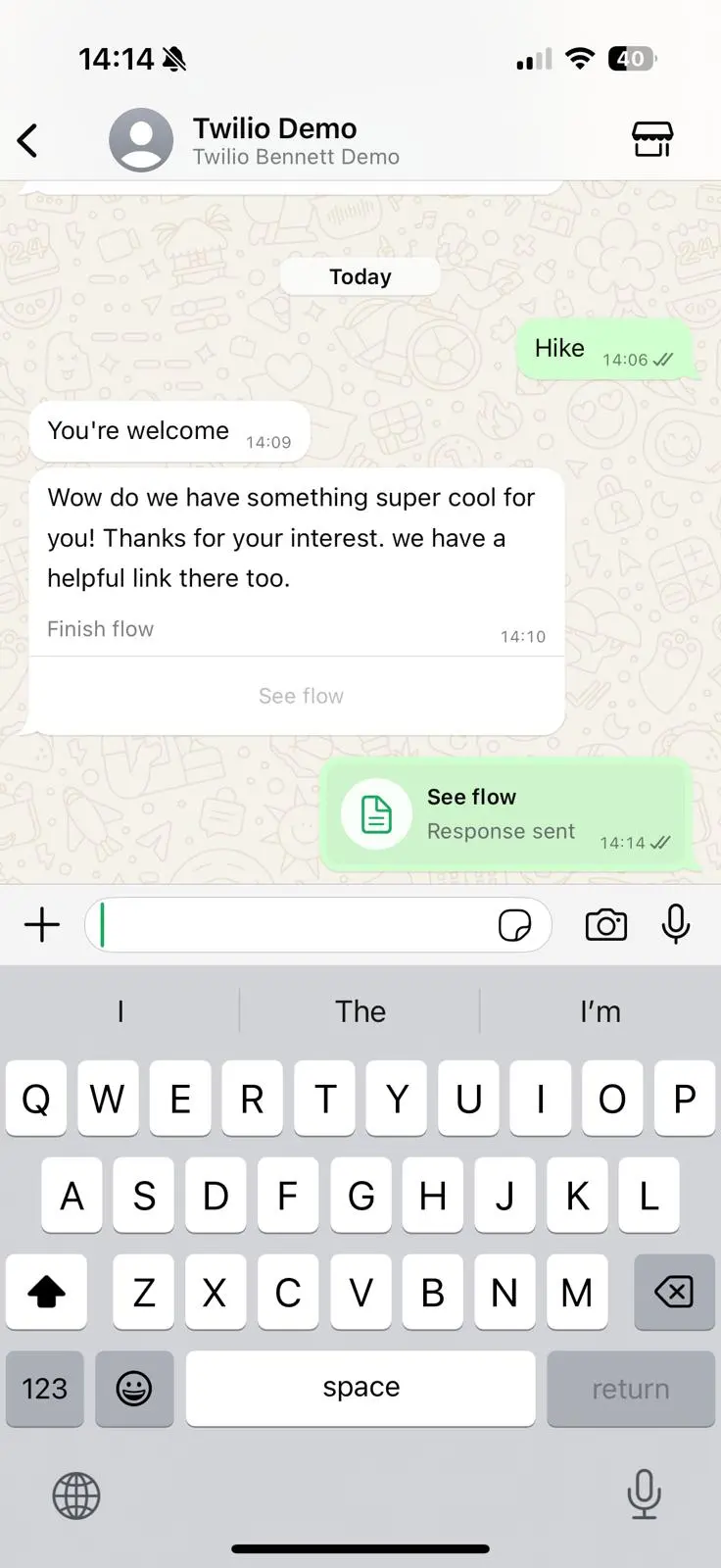 | 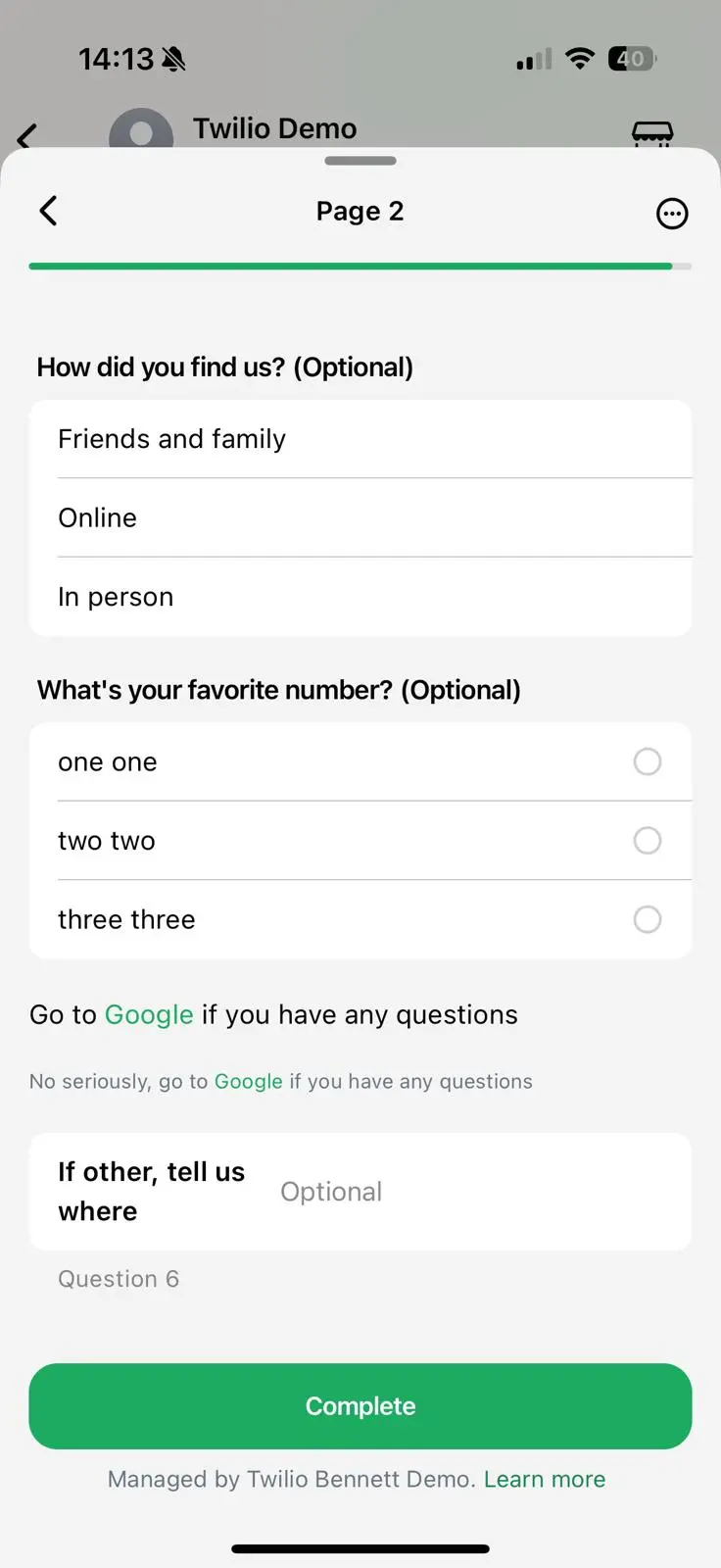 |
|---|
To create Flows with Meta, you'll need the following:
- A WhatsApp sender through Twilio
- A WhatsApp Business Account (WABA)
You can create a Flow with the WhatsApp Manager UI or programmatically with Meta's Flow API.
Tip: Use the Flow playground in the Meta developer docs to preview and configure your Flow. You can copy the JSON for use with either the WhatsApp Manager UI or the Flows API below.
- Follow the steps to open WhatsApp Manager.
- In the Account Tools menu, click Flows.
- Click Create Flow.
- Follow the steps to create a new Flow. Record the
idof the first screen that you want to display. - To publish your new Flow, click Publish.
- In the Account Tools menu, click Flows.
- Copy the Flow ID of the Flow that you've just created.
To send a Flow that you made with Meta, you need to create a whatsapp/flows Content Template with the Flow's ID using the Twilio Content API.
From the creation steps above, ensure you've recorded the following values:
- The unique ID of the Flow
- The ID of the first screen (page) of the Flow
You'll need these for the call to the Content API to create the whatsapp/flow Content Template.
Your call to the Content API must contain the following parameters to create a whatsapp/flows Content Template.
| Parameter | Type | Required | Variable support | Description |
|---|---|---|---|---|
body | string | Yes | Yes | Text of the templated message that launches the Flow. Maximum length: 1,024 characters |
subtitle | string | No | No | Optional subtitle shown in the message footer. Maximum length: 80 characters |
media_url | string | No | Yes | Media included in the initial Flow message. Supports .png, .jpeg, .mp4, and .pdf. The domain must be static; the path can be a variable. |
flow_id | string | Yes | No (approved templates) Yes (in-session without approval) | Identifier for the Flow in WhatsApp. |
flow_token | string | No | Yes (must be a variable) | Unique identifier for the specific Flow interaction. Provide a new value for each send request. |
flow_first_page_id | string | No | No | Identifier of the first page to display in the Flow interaction. |
is_flow_first_page_endpoint | Boolean | No | No | Set to true if an endpoint determines the first page. Defaults to false. |
1CONTENT_CREATE_REQUEST_OBJ=$(cat << EOF2{3"friendly_name": "info_flow",4"variables": {5"1": "abcd1234"6},7"language": "en",8"types": {9"whatsapp/flows": {10"body": "Please take five minutes to answer this survey",11"button_text": "Begin survey",12"flow_id": "1232445823264765",13"flow_token": "{{1}}",14"flow_first_page_id": "QUESTION_ONE"15}16}17}18EOF19)20curl -X POST "https://content.twilio.com/v1/Content" \21--json "$CONTENT_CREATE_REQUEST_OBJ" \22-u $TWILIO_API_KEY:$TWILIO_API_SECRET
Response
1{2"sid": "HXaaaaaaaaaaaaaaaaaaaaaaaaaaaaaaaa",3"account_sid": "ACaaaaaaaaaaaaaaaaaaaaaaaaaaaaaaaa",4"friendly_name": "info_flow",5"language": "en",6"variables": {7"1": "abcd1234"8},9"types": {10"whatsapp/flows": {11"body": "Please take five minutes to answer this survey",12"button_text": "Begin survey",13"flow_id": "1232445823264765",14"flow_token": "{{1}}",15"flow_first_page_id": "QUESTION_ONE"16}17},18"url": "https://content.twilio.com/v1/Content/HXaaaaaaaaaaaaaaaaaaaaaaaaaaaaaaaa",19"date_created": "2015-07-30T19:00:00Z",20"date_updated": "2015-07-30T19:00:00Z",21"links": {22"approval_create": "https://content.twilio.com/v1/Content/HXaaaaaaaaaaaaaaaaaaaaaaaaaaaaaaaa/ApprovalRequests/whatsapp",23"approval_fetch": "https://content.twilio.com/v1/Content/HXaaaaaaaaaaaaaaaaaaaaaaaaaaaaaaaa/ApprovalRequests"24}25}
After creating your whatsapp/flows Content Template, you'll need to send it for WhatsApp approval before sending it to your users outside of a messaging window.
1// Download the helper library from https://www.twilio.com/docs/node/install2const twilio = require("twilio"); // Or, for ESM: import twilio from "twilio";34// Find your Account SID at twilio.com/console5// Provision API Keys at twilio.com/console/runtime/api-keys6// and set the environment variables. See http://twil.io/secure7// For local testing, you can use your Account SID and Auth token8const accountSid = process.env.TWILIO_ACCOUNT_SID;9const apiKey = process.env.TWILIO_API_KEY;10const apiSecret = process.env.TWILIO_API_SECRET;11const client = twilio(apiKey, apiSecret, { accountSid: accountSid });1213async function createApprovalCreate() {14const approvalCreate = await client.content.v115.contents("HXaaaaaaaaaaaaaaaaaaaaaaaaaaaaaaaa")16.approvalCreate.create({17name: "my_whatsapp_flow_template",18category: "MARKETING",19});2021console.log(approvalCreate.name);22}2324createApprovalCreate();
Response
1{2"name": "my_whatsapp_flow_template",3"category": "MARKETING",4"content_type": "twilio/location",5"status": "unsubmitted",6"rejection_reason": "",7"allow_category_change": true8}
You can check the status of a Content Template submitted for WhatsApp approval:
1// Download the helper library from https://www.twilio.com/docs/node/install2const twilio = require("twilio"); // Or, for ESM: import twilio from "twilio";34// Find your Account SID at twilio.com/console5// Provision API Keys at twilio.com/console/runtime/api-keys6// and set the environment variables. See http://twil.io/secure7// For local testing, you can use your Account SID and Auth token8const accountSid = process.env.TWILIO_ACCOUNT_SID;9const apiKey = process.env.TWILIO_API_KEY;10const apiSecret = process.env.TWILIO_API_SECRET;11const client = twilio(apiKey, apiSecret, { accountSid: accountSid });1213async function listContentAndApprovals() {14const contentAndApprovals = await client.content.v1.contentAndApprovals.list({15limit: 20,16});1718contentAndApprovals.forEach((c) => console.log(c.dateCreated));19}2021listContentAndApprovals();
Response
1{2"contents": [],3"meta": {4"page": 0,5"page_size": 10,6"first_page_url": "https://content.twilio.com/v1/ContentAndApprovals?PageSize=10&Page=0",7"previous_page_url": null,8"next_page_url": null,9"url": "https://content.twilio.com/v1/ContentAndApprovals?PageSize=10&Page=0",10"key": "contents"11}12}
Sending a whatsapp/flows Content Template is the same process as sending other Content Templates using the Programmable Messaging APIs. For detailed steps, see Send templates created with the Content Template Builder.
1// Download the helper library from https://www.twilio.com/docs/node/install2const twilio = require("twilio"); // Or, for ESM: import twilio from "twilio";34// Find your Account SID at twilio.com/console5// Provision API Keys at twilio.com/console/runtime/api-keys6// and set the environment variables. See http://twil.io/secure7// For local testing, you can use your Account SID and Auth token8const accountSid = process.env.TWILIO_ACCOUNT_SID;9const apiKey = process.env.TWILIO_API_KEY;10const apiSecret = process.env.TWILIO_API_SECRET;11const client = twilio(apiKey, apiSecret, { accountSid: accountSid });1213async function createMessage() {14const message = await client.messages.create({15contentSid: "HXaaaaaaaaaaaaaaaaaaaaaaaaaaaaaaaa",16from: "whatsapp:+14155238886",17to: "whatsapp:+15017122661",18});1920console.log(message.sid);21}2223createMessage();
Response
1{2"account_sid": "ACaaaaaaaaaaaaaaaaaaaaaaaaaaaaaaaa",3"api_version": "2010-04-01",4"body": "Hello! 👍",5"date_created": "Thu, 24 Aug 2023 05:01:45 +0000",6"date_sent": "Thu, 24 Aug 2023 05:01:45 +0000",7"date_updated": "Thu, 24 Aug 2023 05:01:45 +0000",8"direction": "outbound-api",9"error_code": null,10"error_message": null,11"from": "whatsapp:+14155238886",12"num_media": "0",13"num_segments": "1",14"price": null,15"price_unit": null,16"messaging_service_sid": "MGaaaaaaaaaaaaaaaaaaaaaaaaaaaaaaaa",17"sid": "SMaaaaaaaaaaaaaaaaaaaaaaaaaaaaaaaa",18"status": "queued",19"subresource_uris": {20"media": "/2010-04-01/Accounts/ACaaaaaaaaaaaaaaaaaaaaaaaaaaaaaaaa/Messages/SMaaaaaaaaaaaaaaaaaaaaaaaaaaaaaaaa/Media.json"21},22"to": "whatsapp:+15017122661",23"uri": "/2010-04-01/Accounts/ACaaaaaaaaaaaaaaaaaaaaaaaaaaaaaaaa/Messages/SMaaaaaaaaaaaaaaaaaaaaaaaaaaaaaaaa.json"24}
When a user submits a Flow in WhatsApp, Twilio sends a webhook request to the messaging endpoint that you've configured on your WhatsApp sender. The InteractiveData field contains the names and user-submitted values for the Flow's structured data components.
You can also prepare a follow-up experience for the user, such as a message to indicate that you have received the completed flow.
| Field | Description |
|---|---|
InteractiveData | User-provided information in JSON format. |