Engage and Warehouses
Engage provides a complete, up-to-date view of your customers through Audiences and Journeys, and one of the best ways to analyze this data is in your data warehouse using SQL.
With Engage, you can send Computed Traits and Audiences to a data warehouse like Redshift, BigQuery, or Snowflake. This allows you to perform analysis and reporting around key customer audiences and campaigns, as well set up your user data as input into predictive models.
Segment offers two ways to integrate Engage with your data warehouse:
- Storage Actions Destinations (recommended): Write Linked Audiences and Event-Triggered Journeys data to your warehouse
- Classic Storage Destinations: Send Computed Traits and Profile Audiences to your warehouse
- Use Storage Actions Destinations to write Linked Audiences and Event-Triggered Journeys data to Snowflake, Databricks, Redshift, and BigQuery warehouses.
- Use Classic Storage Destinations for Computed Traits and warehouses not supported by Storage Actions Destinations.
Segment supports Snowflake, Redshift, BigQuery, and Databricks as Storage Actions Destinations. This is the recommended destination type that lets you write data from Engage back to your warehouse. With Storage Actions, you can sync:
- Linked Audiences: Write audience enter/exit events when users join or leave audiences.
- Event-Triggered Journeys: Write journey step events as users progress through journeys.
- Profile Audiences: Write profile audience membership data.
Before setting up a warehouse actions instance, set up Linked Audiences.
You must connect your warehouse destination to the Engage space to set up warehouse actions.
To add the warehouse destination instance to the Engage space:
- Go to the Engage Destination settings.
- Select Add another destination from the catalog.
- Select the warehouse destination in the Storage connection type.
- (Optional) Choose your Engage space as the Data Source.
- Select either Use existing warehouse or Set up new warehouse.
If you select Use existing warehouse: Select the warehouse instance you want to write data to from the connected destination list. Once selected, your warehouse instance is now connected to the Engage space.
If you select Set up new warehouse:
- Follow the warehouse destination setup steps:
- Select Test connection.
- Select Set up activation.
Once you've connected your warehouse to the Engage space, you can use this in Engage Settings > Destinations list.
- Select the warehouse destination instance you want to write data to from the connected destination.
- Define the table name, event properties and field mappings.
Segment scopes the write calls to <Engage_Space_Name>.<User_Specified_Table_Name>. Segment restricts write calls to the same schema, and does not support writing to the schema.
Segment stores entity context objects in a single Stringified JSON column to avoid hitting the warehouse's column limits.
Classic Storage Destinations let you send Computed Traits and Profile Audiences to your warehouse as identify or track calls. This integration follows the standard Segment warehouse ETL process with scheduled syncs.
Use Classic Storage Destinations for:
- Computed Traits (event-based, SQL-based, or machine learning traits)
- Profile Audiences using Identify or Track calls
- Warehouses that don't support Storage Actions Destinations
When you build an audience or computed trait, you can configure it to send an identify call or a track call to your data warehouse, and additionally include mobile ids.
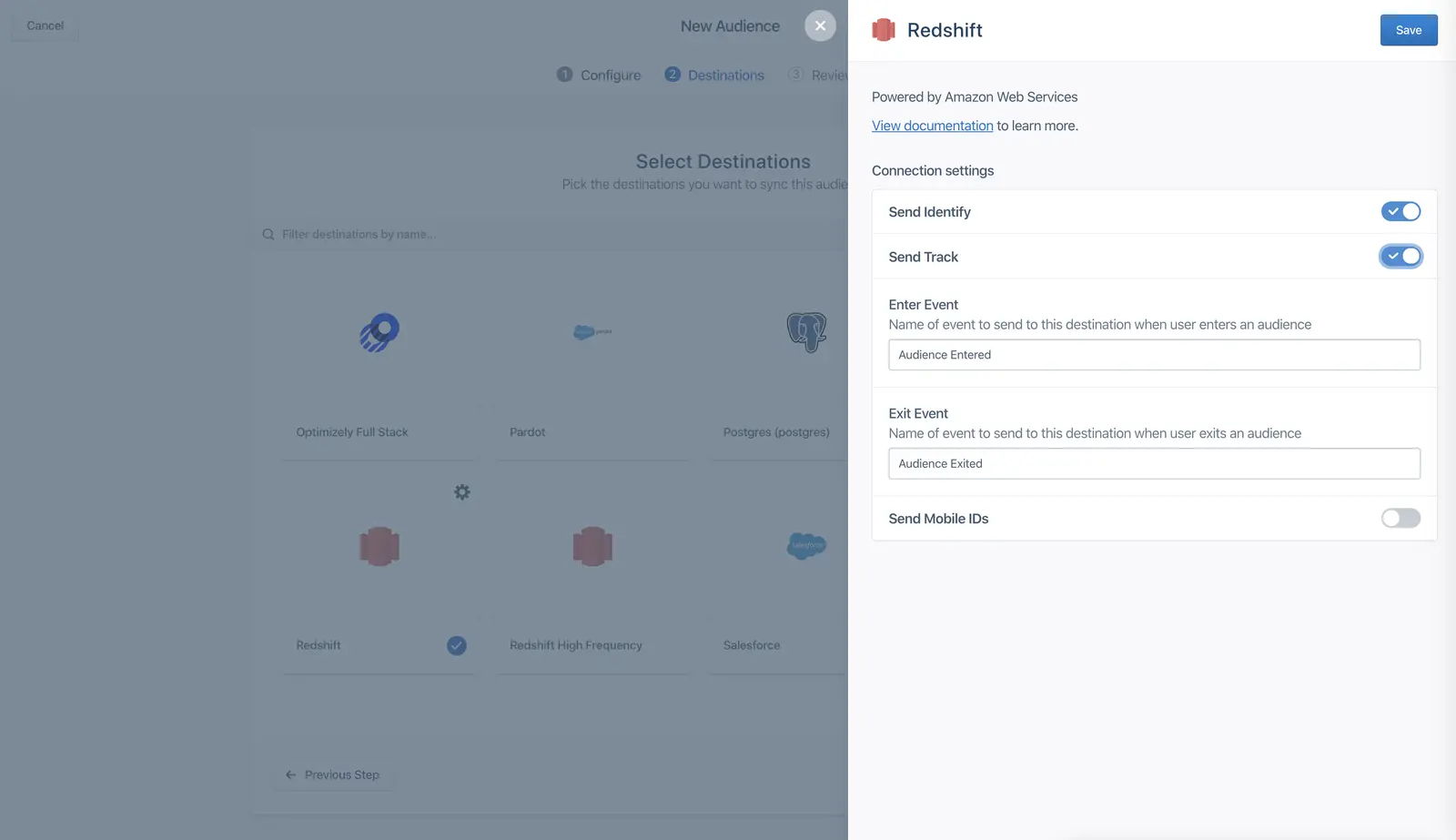
Pre-requisite: Set up Linked Audiences.
Connect to Engage
You must connect your warehouse destination to the Engage space to add activation.
To add the warehouse destination instance to the Engage space:
- Go to the Engage Destination settings.
- Select Add another destination from the catalog.
- Select the warehouse destination in the Storage Connection type.
- (Optional) Choose the Engage space as the Data Source.
- Select from either Use existing warehouse or Set up new warehouse.
- If you select Use existing warehouse:
- For an existing warehouse, select the warehouse instance.
- Your warehouse instance is now connected to the Engage space.
- Verify in the Engage Settings, the destination list.
- If you select Use existing warehouse:
- If you select Set up new warehouse:
- Reuse existing credentials or input your credentials (username and key-pair authentication).
- Test the connection.
- Select Set up activation.
Your warehouse instance is now connected to the Engage space. You can verify this in Engage Settings > Destinations list.
- Select the warehouse destination instance you want to write data to from the connected destination.
- Specify the table name, event properties, and mapping to define the structure.
- You can write data from multiple audiences and activations to a single table by specifying table names. Write calls are restricted to the same schema. X-schema writes are not supported.
- Segment writes data to
<Engage_Space_Name>.<User_Specified_Table_Name>
- Segment writes data to
- Mapping allows you to elevate specific entity context fields into columns.
- Segment stores entity context objects in a single Stringified Json column to avoid hitting the Snowflake's column limits.
- By default, syncs run on an hourly basis. You can configure sync frequency for the warehouse by accessing the warehouse settings. Note: Sync frequency change will impact other write calls to the warehouse – for example, Profiles Sync, Connections.
- You can write data from multiple audiences and activations to a single table by specifying table names. Write calls are restricted to the same schema. X-schema writes are not supported.
If you chose to send your Engage data as an identify call, Engage usually sends one call per user.
When you send audiences as an identify call, Engage includes a boolean trait that matches the audience name. When a user enters an audience the boolean is set to true, and when they exit, the boolean is set to false.
In the example below, you can see that the identify payload includes a trait of the audience first_time_shopper with the value of true.
1{2"type": "identify",3"userId": u123,4"traits": {5"first_time_shopper": true // false when a user exits the audience6}7}
When you send computed traits as an identify call, Engage sends a similar call with the computed value for that trait. In the example below, the trait total_revenue_180_days includes the calculated value of 450.00.
1{2"type": "identify",3"userId": u123,4"traits": {5"total_revenue_180_days": 450.006}7}
Engage identify calls appear in your warehouse using a similar format as normal Connections identify calls. Identify calls appear in two tables per Engage space. These tables are named with a prefix of engage_, then the Engage space name, followed by identifies or users. The identifies table contains a record of every identify call, and the users table contains one record per user_id with the most recent value.
The engage_ schema name is specific to the Engage space and cannot be modified. Additional audiences and computed traits appear as additional columns in these tables.
engage_default.identifies
| user_id | first_time_shopper | total_revenue_180_days |
|---|---|---|
| u123 | true | |
| u123 | 450.0 |
engage_default.users
| user_id | first_time_shopper | total_revenue_180_days |
|---|---|---|
| u123 | true | 450.00 |
When you send audiences using track calls, Engage sends an Audience Entered event when a user enters, and an Audience Exited event when the user exits, by default. These event names are configurable.
Engage also sends two event properties about the audience: the audience_key, which records the name of the audience that the event modifies, and the audience name and its value, as a separate key and value pair. The value of the audience key is populated with a boolean value.
In the example below, you can see that the audience_key is set to record a modification to the first_time_shopper audience, and the first_time_shopper value is set to true.
1{2"type": "track",3"userId": u123,4"event": "Audience Entered",5"traits": {6"audience_key": "first_time_shopper",7"first_time_shopper": true8}9}
When you send computed traits, Engage sends a Trait Computed event that records which computed trait it updates, then records the updated key and value. You can also customize this event name.
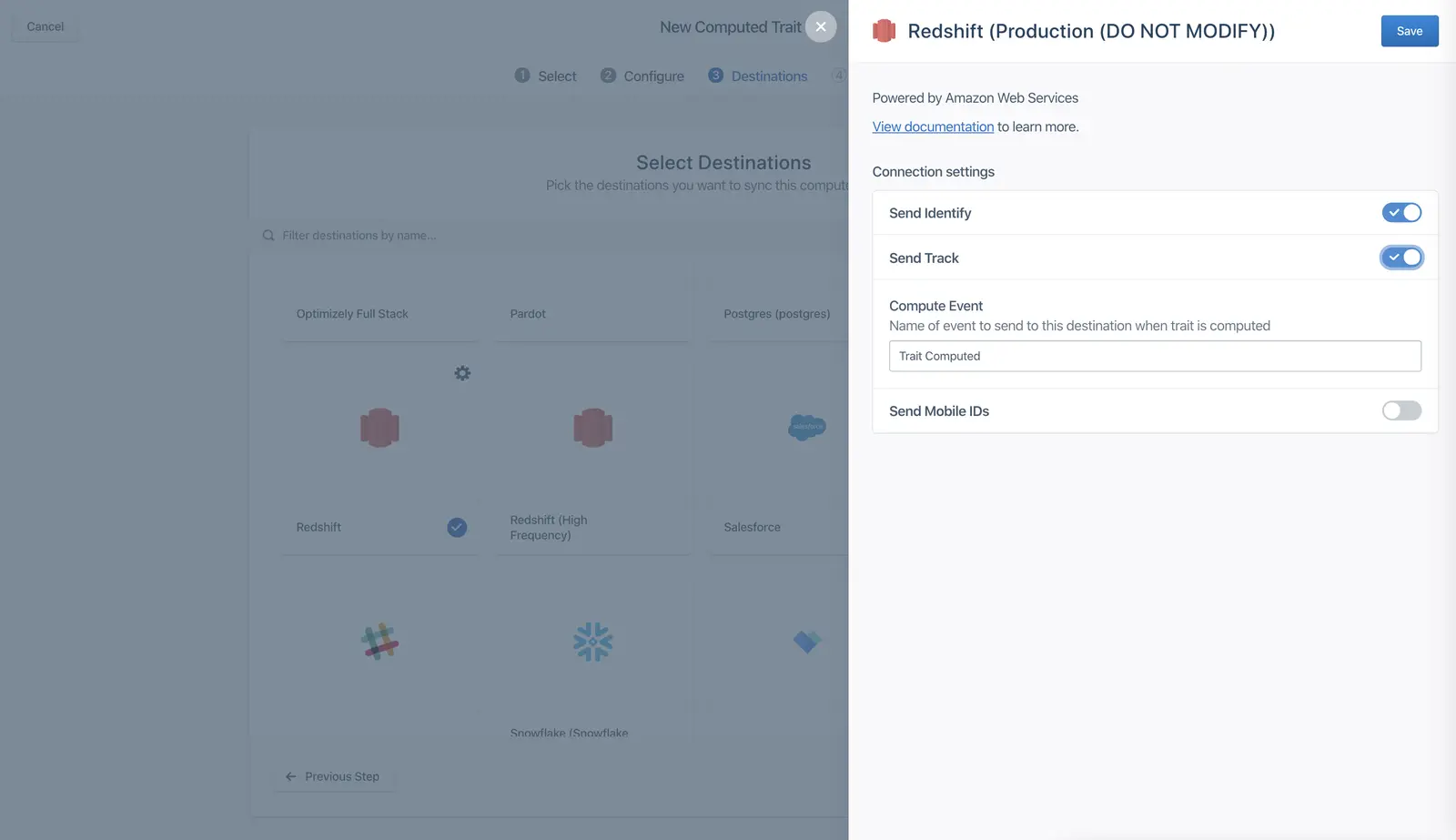
In the example below, the Trait Computed event contains the trait_key which records which computed trait is being modified, and then includes the key total_revenue_180_days with the updated value of 450.00.
1{2"type": "track",3"userId": u123,4"event": "Trait Computed",5"traits": {6"trait_key": "total_revenue_180_days",7"total_revenue_180_days": 450.008}9}
Similar to track calls in Connections, Engage track calls appear in your warehouse as one table per event name. For example, if you configure your events called Audience Entered, Audience Exited, and Trait Computed, Engage would create tables like the following examples in your warehouse:
engage_default.audience_entered
| user_id | audience_key | first_time_shopper |
|---|---|---|
| u123 | first_time_shopper | true |
engage_default.audience_exited
| user_id | audience_key | first_time_shopper |
|---|---|---|
| u123 | first_time_shopper | false |
engage_default.trait_computed
| user_id | total_revenue_180_days | trait_key |
|---|---|---|
| u123 | 450.00 | total_revenue_180_days |
The users table is an aggregate view based on the user_id field. This means that anonymous profiles with just an anonymous_id identifier aren't included in this view. You can still view identify calls for anonymous audiences and computed traits in the identifies table.
The users table is synced as soon as the warehouse is connected as a destination in Engage, if you've previously created Engage computations. As a result, the table might contain data from computations not directly connected to the warehouse.
Although Engage can compute audiences and traits in real-time, these calculations are subject to the sync schedule allowed by your warehouses plan, which is usually hourly. You can check the warehouse sync history to see details about past and upcoming syncs. When you look at the sync schedule, sources with the engage_ prefix sync data from Engage.
Use Storage Actions Destinations for Linked Audiences, Event-Triggered Journeys, and Profile Audiences with Snowflake, Databricks, Redshift, or BigQuery. Use Classic Storage Destinations for Computed Traits or warehouses not supported by Storage Actions Destinations.
Yes, you can use both concurrently. For example, send Computed Traits with Classic Storage and Linked Audiences with Storage Actions.
Storage Actions syncs data after each audience or journey run completes, while Classic Storage uses scheduled hourly syncs. Storage Actions also gives you more control over schema and table naming.
Segment starts a warehouse sync after each audience or journey run completes. Data typically appears within minutes, depending on warehouse performance.
Yes, when you create an activation, you can choose the schema and define the table name. Data write calls are scoped to <Engage_Space_Name>.<User_Specified_Table_Name>.
No, Computed Traits only work with Classic Storage Destinations.
Yes. You can use Warehouses Selective Sync to manage which traits, audiences, and tables get synced from Engage.
Segment can only connect a source to one instance of each destination. For example, one source cannot send to two different Amplitude instances. As a workaround, Engage creates multiple sources to send events to the destinations connected to your space.
For example, if you have three webhook destinations in your space, Engage creates three different sources to send events to them. This creates three different warehouse schemas, and is usually the reason you have more schemas than spaces.
This approach doesn't apply to messaging destinations, however. Messaging destinations connected from journeys and broadcasts don't generate multiple background sources.